
Connect WhatsApp Business to Conversa
Many Nigerian teams already sell and support customers on WhatsApp. Conversa now lets you answer those chats with the same bot you use on your website: same PDFs, same policies, same tone. You do not paste a script tag on WhatsApp. You connect your own WhatsApp Business number through Meta, and Conversa handles the AI replies.
Your number, your credentials
This is important for trust and billing:
- Each business connects its own WhatsApp Business account (through Meta).
- After setup, your access token, phone number ID, and optional WABA ID are stored encrypted for your workspace, linked to one bot.
- Messages to your business number are sent and received using your token.
- Conversa does not use one admin API key to operate every customer's WhatsApp for them.
Conversa (the platform) still runs one webhook URL for all customers. When someone messages your number, Meta tells Conversa which phone_number_id received it, and we route that to the right bot and workspace.
What you need before connecting
1. Meta Business access and a WhatsApp Business phone number you can verify.
2. A permanent access token from Meta (a System User token in Business Settings is better for production than the temporary token on API Setup).
3. In Conversa:
- Bot status ACTIVE
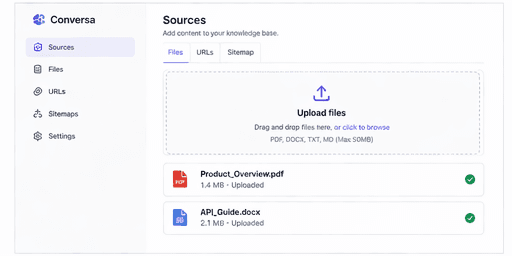
- Sources uploaded (PDFs, URLs, notes) and processed
- A quick test question answered correctly in the dashboard or on your website widget first
If the bot cannot answer on the web, fix your sources before expecting good WhatsApp replies.
Step-by-step: connect in Conversa
1. Prepare the bot
Sign in to Conversa, open Bots, and choose the bot that should speak for this WhatsApp line (one number per bot is the simplest setup).
Add or update Data sources, click Process, and set the bot to ACTIVE.
2. Open WhatsApp settings
In the bot workspace sidebar, click WhatsApp. You will see:
- Whether the platform webhook is configured (your host admin handles this once).
- A form for your Meta credentials.
3. Copy values from Meta
In Meta Developer → your app → WhatsApp → API Setup (or Configuration for webhooks), gather:
| Field | Where it lives |
|--------|----------------|
| Phone number ID | API Setup |
| Access token | Permanent token (System User recommended) |
| WABA ID | WhatsApp Business Account ID (recommended) |
Paste them into Conversa. Optionally add your display number (e.g. +234 803 …) so your team recognizes the connection.
Click Connect WhatsApp. Conversa validates the token against Meta and saves it encrypted.
4. Test from your phone
From your personal WhatsApp (not the Business app API line itself), send a message to your business number. Ask something that is clearly in your FAQs, for example delivery time or pricing.
You should receive an AI reply grounded in your sources. If not, check:
- Bot is ACTIVE
- Sources are processed
- Token and phone number ID are correct
- Your host has the Meta webhook subscribed to messages
5. Go live
Leave the connection enabled. Your team can still handle escalations manually on WhatsApp when needed. Review Conversations in Conversa to see what customers ask and improve sources over time.
What Conversa's administrator configures (once)
Customers usually do not touch this. The Conversa team sets in Meta Developer → WhatsApp → Configuration:
- Callback URL:
https://www.conversa.ng/api/webhooks/whatsapp(or your self-hosted APP_URL) - Verify token: matches
WHATSAPP_WEBHOOK_VERIFY_TOKENon the server - Webhook field:
messages
That single endpoint serves all connected businesses. Routing is by phone number ID.
Practical limits to plan for
24-hour window: You can reply freely while the customer has messaged you in the last 24 hours. After that, Meta requires approved message templates for outbound messages.
Text first: Conversa focuses on text Q&A. Other message types may receive a short notice to send text.
Human handoff: Refunds, angry customers, and legal issues should still go to your team. Use a honest fallback message in bot settings.
Costs: Meta charges per WhatsApp conversation by category and country. That is separate from your Conversa plan.
Train once, answer everywhere
The real win is one knowledge base:
- Website visitors use the embed widget.
- WhatsApp customers message your business line.
- Both use the same processed sources and bot configuration.
Update your PDFs and policies once; both channels improve.
Disconnect or rotate tokens
If you change Meta tokens or switch numbers, open WhatsApp in the bot settings and Disconnect, then connect again with the new credentials.
---
Ready to connect? Open your bot in the [Conversa dashboard](/login), go to WhatsApp, and follow the on-screen steps. For a shorter checklist, see the [WhatsApp setup doc](/docs/whatsapp). Questions? [Contact us](/contact).